Upgrade guide
SSD Upgrade vs New Computer: What Makes Sense for an Older PC?
A slow computer does not always need replacement. Sometimes the right SSD and memory check can add years of useful life.
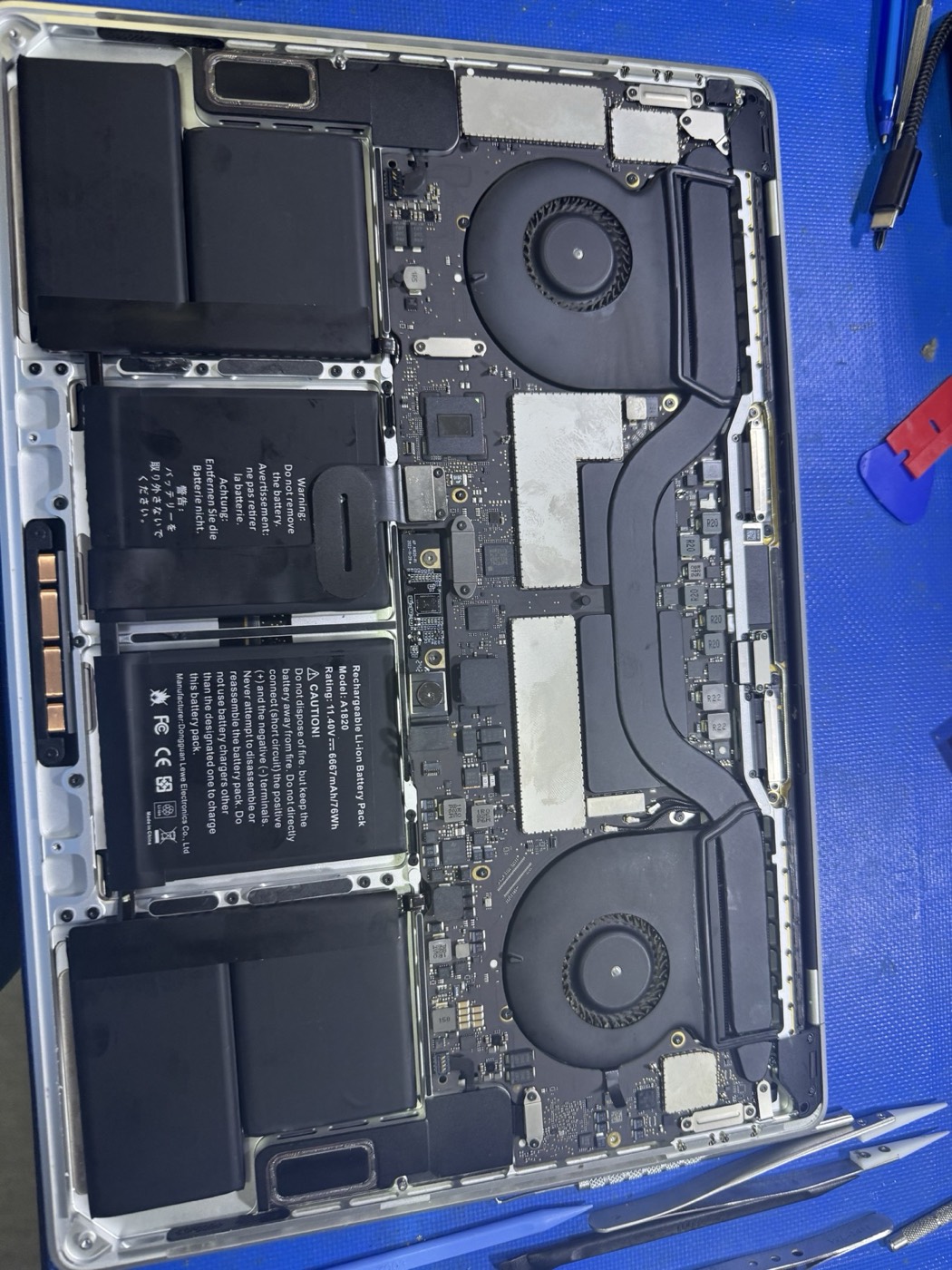
An SSD upgrade helps most when the old drive is mechanical
If your computer still has a spinning hard drive, an SSD can be the biggest speed improvement available. Startup, updates, app launches, browser use, and file searches usually feel much faster after the upgrade.
Check the processor, RAM, and operating system first
An SSD cannot fix every bottleneck. Very old processors, 4 GB of RAM, unsupported Windows versions, failing batteries, or damaged screens can make replacement more practical than repair.
Preserve files before cloning or reinstalling
If the old drive is failing, cloning it can stress the drive and make recovery harder. Back up important files and check drive health before copying the system to a new SSD.
When replacement is the better call
Replacement often makes sense when repair plus parts costs approach the value of a newer computer, when the device cannot run secure updates, or when multiple parts are failing at once.
For businesses, downtime matters too
A low-cost upgrade can still be expensive if it causes repeated downtime. For small offices, the best answer may be a planned replacement, managed backup, and clean setup instead of repeated one-off repairs.
Not sure whether to upgrade or replace?
KingsPark IT can check drive health, RAM pressure, startup problems, and data risk before you spend money.
FAQs
Will an SSD make an old computer faster?
Usually, yes. Replacing a mechanical hard drive with an SSD can dramatically improve startup, app launch, and update performance if the rest of the computer is healthy.
When is a new computer better than an SSD upgrade?
Replacement is usually smarter when the computer has a weak processor, unsupported operating system, board damage, failing screen, or repair costs approaching the value of a newer machine.
Should I upgrade RAM at the same time?
If the computer has only 4 GB or 8 GB of memory and is used for browsers, Office, accounting, or photos, a RAM upgrade may pair well with an SSD.